Your Referrals
No referrals found.
Your Advocates
No Advocates found.
Add a Referral
Thank you! Referral submitted.
Embed Form
Copy the following code and paste it into your website:
User Settings
Email Settings
You must be logged in to access this page.
Help
Confirm/Set User Settings
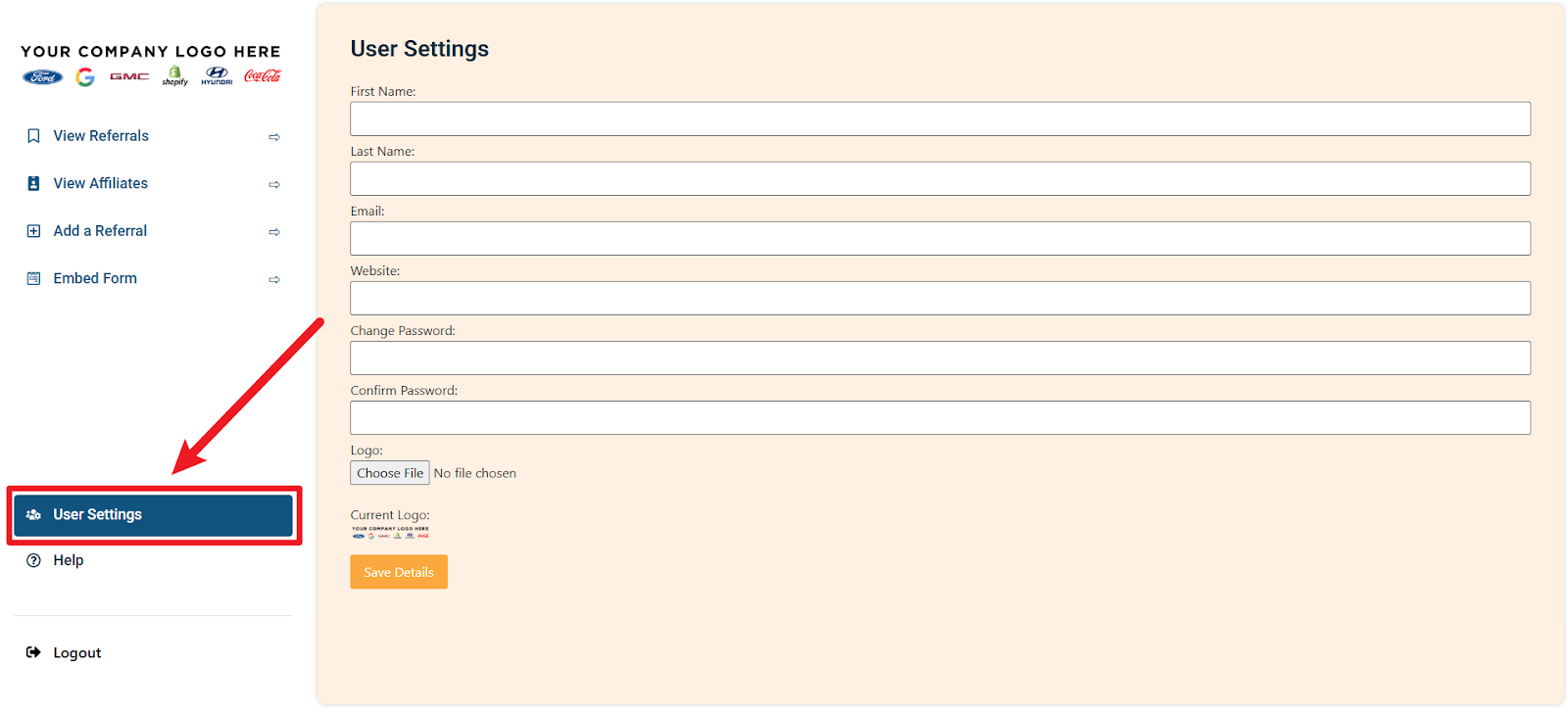
Navigate to the “User Settings” tab in the lefthand menu.
- Add your first and last name in the “First Name” and “Last Name” fields.
- Enter the email address that you would like to access the referral portal with and receive notifications about referral/dashboard activity in the “Email” field.
- Enter your website address (URL) in the “Website” field.
- Upload your business logo using the “Choose File” upload button in the “Logo” field.
- When needed, you can use the “Change Password” and “Confirm Password” fields to update your password.
- Click the “Save Details” button to confirm and save your user settings.
Managing Referrals
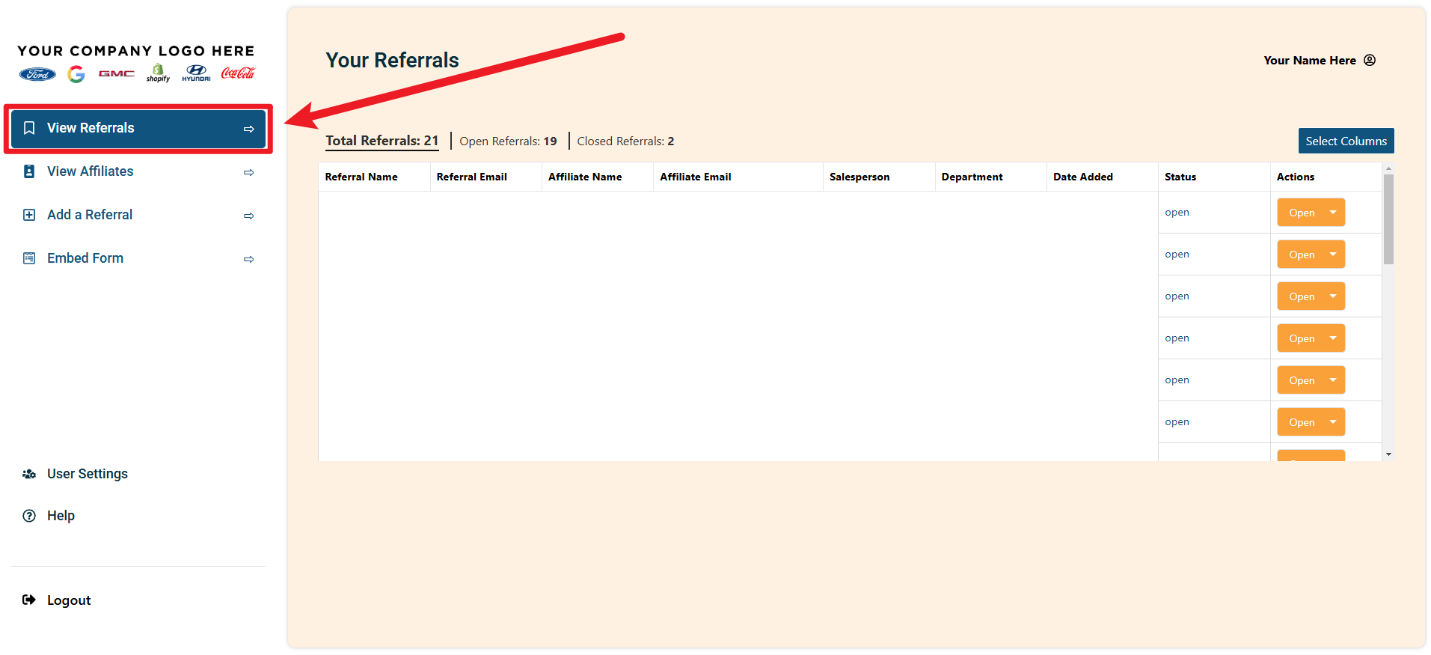
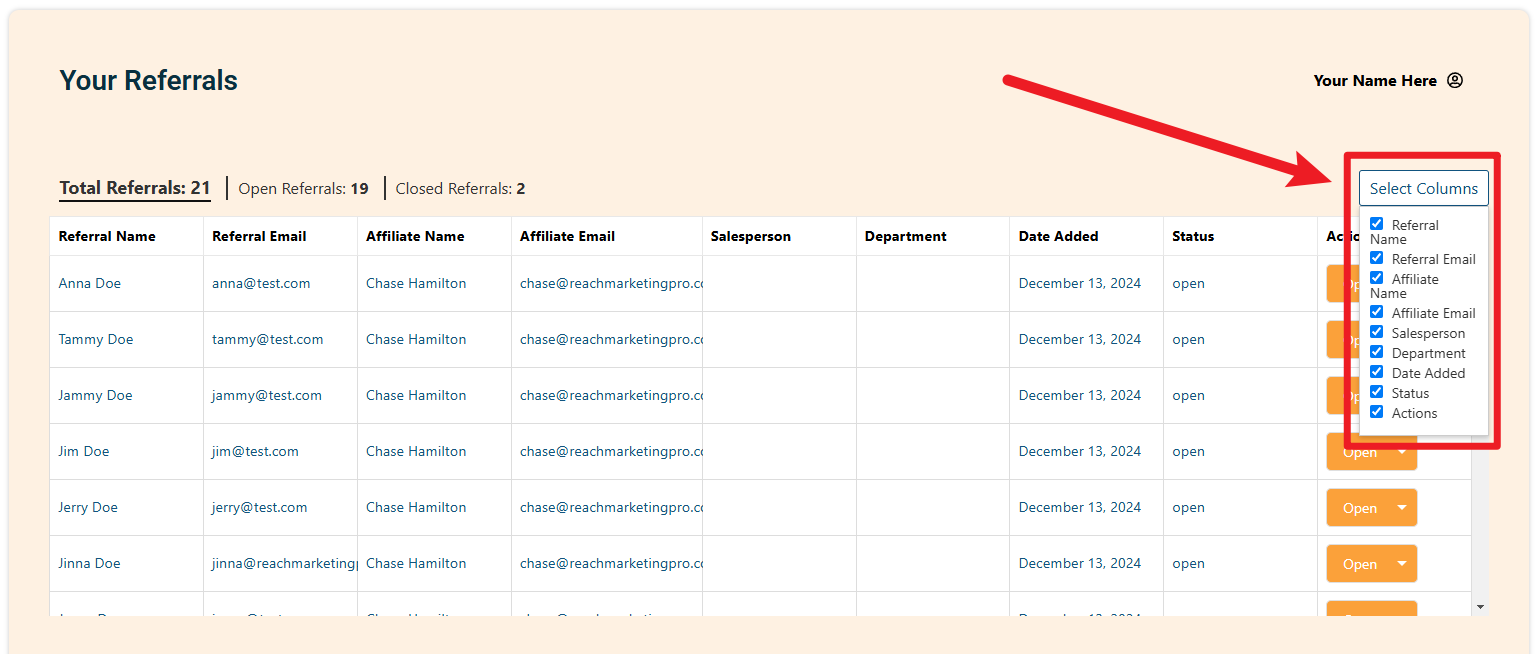
Navigate to the “View Referrals” tab on the lefthand menu.
- Referral Name is the name of the person referred to your business.
- Referral Email is the email address of the person referred to your business.
- Affiliate Name is the name of the person who referred another person to your business.
- Affiliate Name is the email address of the person who referred another person to your business.
- Salesperson (where applicable) is the name of the employee at your business who worked with the referral.
- Department (where applicable) is the department at your business responsible for handling the referral.
- Date Added refers to the initial date that the referral was first added to the dashboard.
- Status refers to the current action status of the referral:
- Open – This status means that the referral is still open and has not completed the action required to receive the referral bonus/payout.
- Closed – This status means that the referral is still open and has not completed the action required to receive the referral bonus/payout.
- Actions refer to the two actions you can mark as a status for the referral:
- Open – This action is the default action and should remain as long as the referral has not completed the action required to receive the referral bonus/payout.
- Closed – This action should be selected once the referral completes the necessary action required to receive the referral bonus/payout.
- The Closed action triggers an email workflow that sends email notifications to the dashboard owner (you), the referral, and the affiliate, notifying the dashboard owner (you) to proceed with the earned referral bonus/payout to the affiliate and referral (where applicable), notifying the affiliate to expect their bonus/payout soon for referring the referral, and notifying the referral to expect their bonus/payout soon (where applicable).
- The copy used in these email workflows is controlled in User Settings > Email Settings.
- The Closed action triggers an email workflow that sends email notifications to the dashboard owner (you), the referral, and the affiliate, notifying the dashboard owner (you) to proceed with the earned referral bonus/payout to the affiliate and referral (where applicable), notifying the affiliate to expect their bonus/payout soon for referring the referral, and notifying the referral to expect their bonus/payout soon (where applicable).
Managing Affiliates (Advocates)
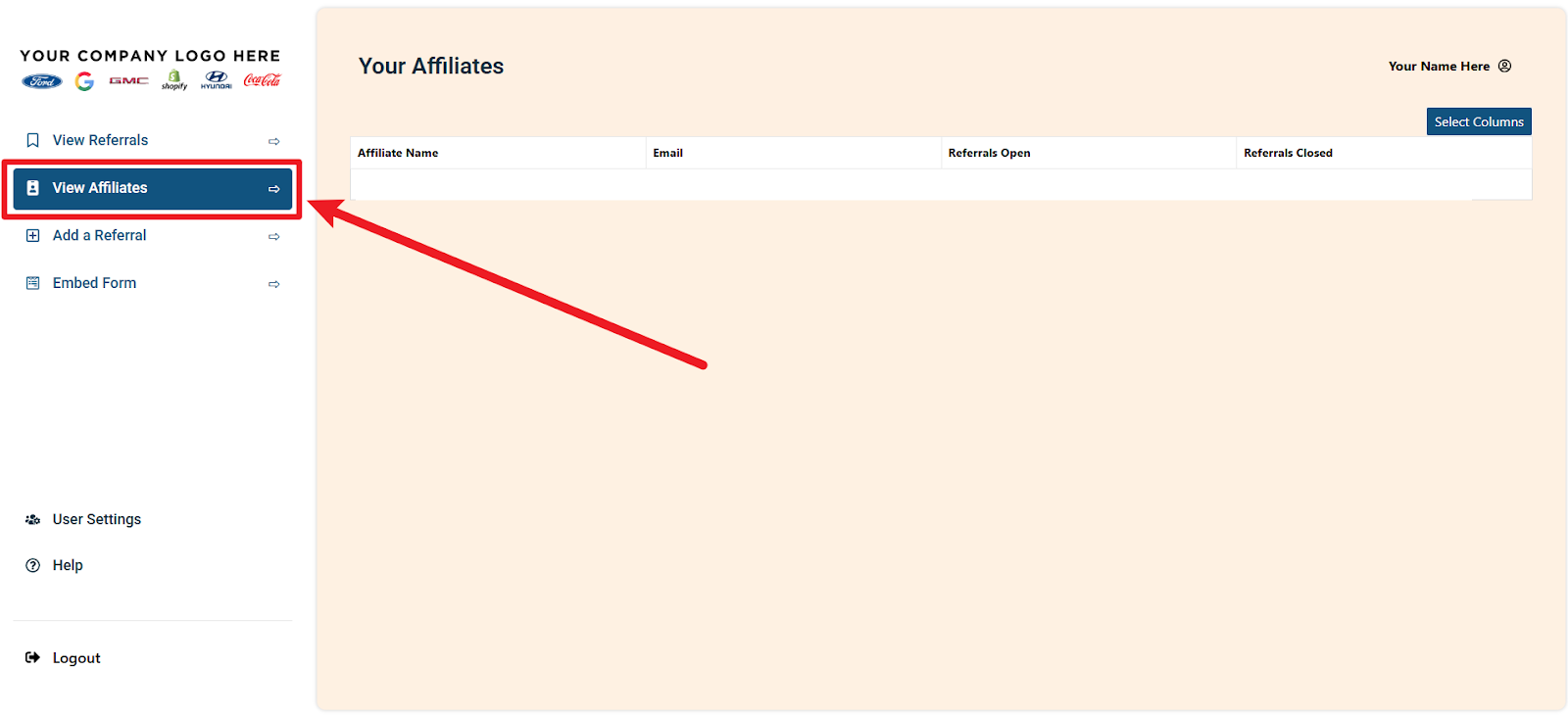
Navigate to the “View Affiliates” tab on the lefthand menu.
- Affiliate Name is the name of the person who referred another person to your business.
- Email is the email address of the person who referred another person to your business.
- Referrals Open refers to the number of open referrals the Affiliate has referred to your business.
- Referrals Closed refers to the number of closed referrals the Affiliate has referred to your business who have completed the necessary action to receive the referral bonus/payout.
Manually Adding a Referral
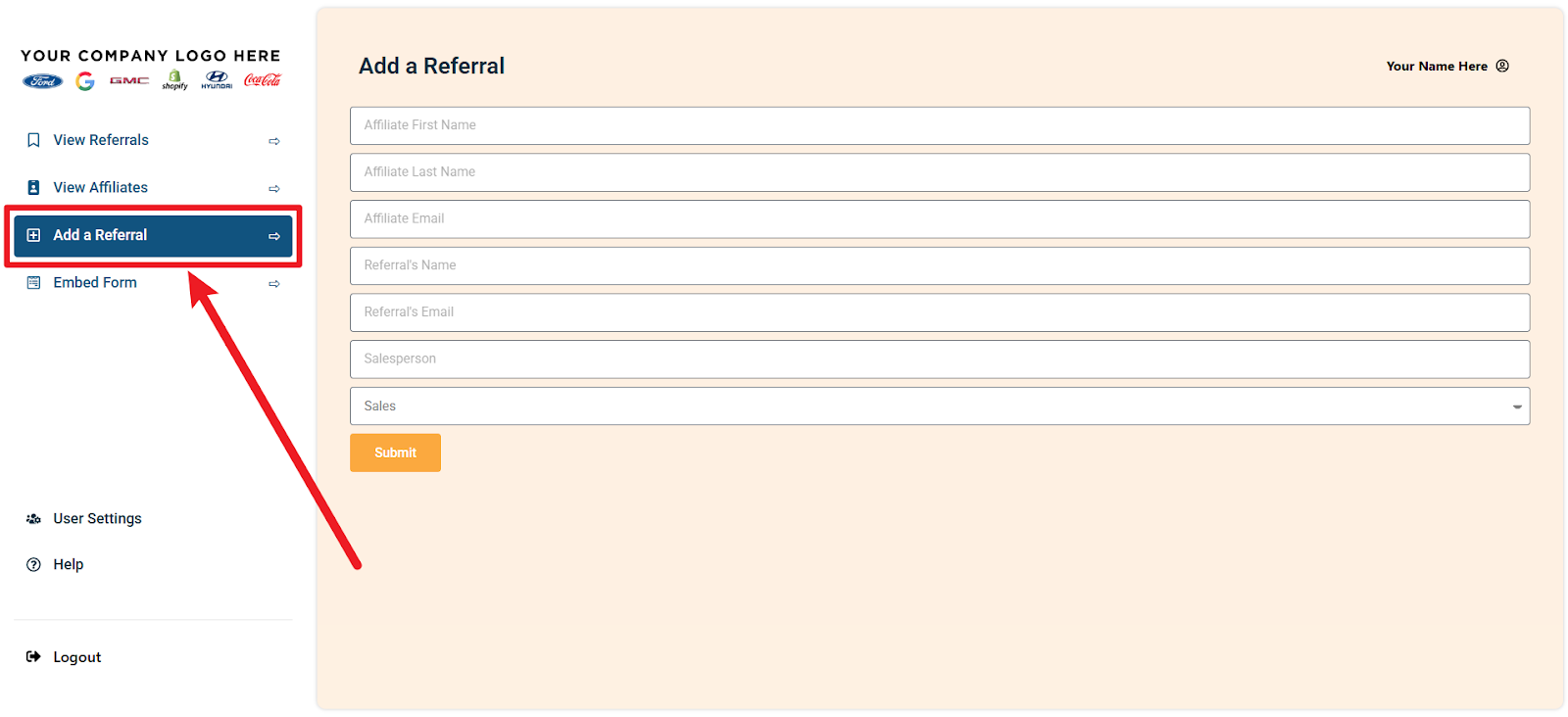
Navigate to the “Add a Referral” tab on the lefthand menu.
- In the “Affiliate First Name” field, add the first name of the person who referred the referral to your business.
- In the “Affiliate Last Name” field, add the last name of the person who referred the referral to your business.
- In the “Affiliate Email” field, add the email address of the person who referred the referral to your business.
- In the “Referral’s Name” field, add the full name of the person being referred to your business by the affiliate.
- In the “Referral’s Email” field, add the email address of the person being referred to your business by the affiliate.
- In the “Salesperson” field, add the full name of the name of the employee at your business who is assisting the affiliate and/or the referral.
- In the “Select a Department” dropdown field, select the department that is responsible for managing the referral. If departments are not necessary, leave this unselected showing “Select a Department” and this field will remain blank.
Adding a Referral Form to Your Website
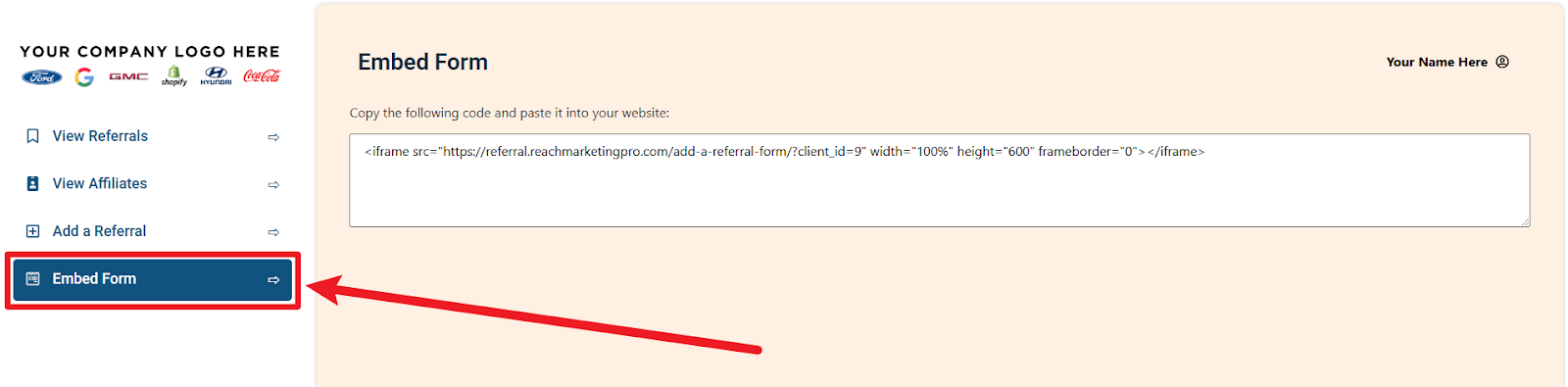
Navigate to the “Embed Form” tab on the lefthand menu.
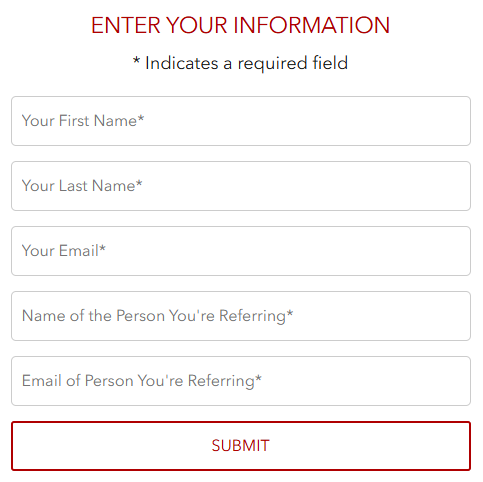
- Highlight and copy the text in the white box area then paste this code on your website or in a relevant HTML widget where you would like a referral form to be placed.
The embed form resembles the form above and form fields can be customized by reaching out to us at support@reachmarketingpro.com and requesting a custom embed form.
Customizing the Columns & Dashboard
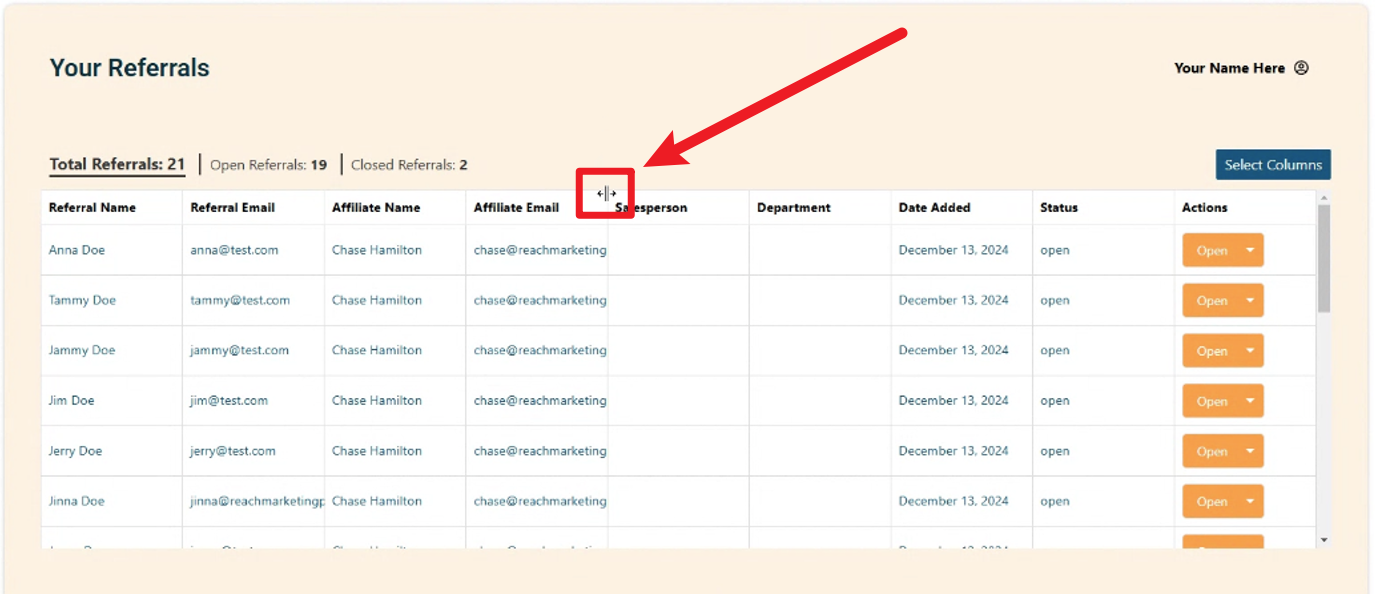
- Selecting the columns appropriate for your referral program:
- To select the columns that best help you manage your referral program, click on the ‘Select Columns’ button in the top right corner of the ‘View Referrals’ tab, then check the columns you want to appear in the referrals table and uncheck the columns you don’t want to appear in the referrals table.
- Adjusting column width:
- To adjust column width, hover over the vertical border line of a column until your mouse cursor changes shape, then click and drag left-to-right to resize any particular column to its desired width.
No referrals found.
No Advocates found.
Add a Referral
Embed Form
Copy the following code and paste it into your website: